
Customer Portal: View Open Orders, Make Changes, & Add to Favorites
- Kassie Teagarden
- Company News
- Sep 2, 2022
-
1162views

LAPP Tannehill Customer Portal Series: View Open Orders, Make Changes, & Add to Favorites
This LAPP Tannehill Customer Portal Series includes how-to videos on how to use your account to your advantage. Learn how to view open orders, make changes to existing orders, and add to favorites.
Want to make your life a little easier when doing business with LAPP Tannehill? Sign up for your own account on our customer portal for a more efficient ordering process.
Sign in or request a new customer portal account.
Access your account information whenever you want to take a look at current orders and order history, make changes to your existing orders, add to favorites, view tracking info on placed orders, view and email order acknowledgement and invoices, convert quotes to orders, and more.
Watch the video below to learn how to view open orders, make changes to existing orders, and add to favorites.
0:00 - 0:25 Intro
0:26 - 1:14 View Open Orders Summary
1:15 - 1:55 View Open Order Details
1:56 - 2:13 Make Changes to Existing Orders
2:14 - 2:35 View, Print, or Email a Copy of your PO
2:36 - 3:00 Add to Favorites
3:00 - 3:32 Customer Portal Testimonial
View Open Orders
Tired of trying to figure out which part number you're looking for on our website or other distribution sites? With our customer portal, we store your customer-specific part number so you can easily search for what you're looking for.
Once you're signed in, if you click on ‘Orders’ under 'Inquiries' on the menu on the left-hand panel, you can see all of your open orders in ‘Open Order Summary’.
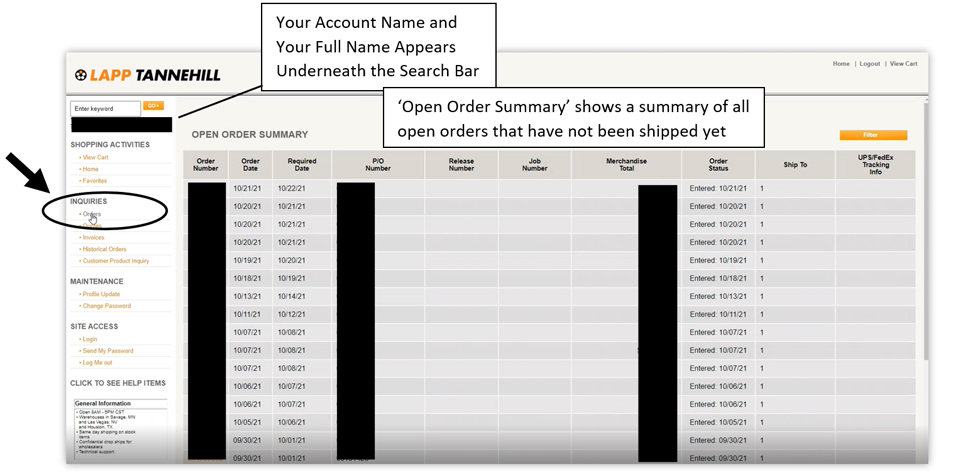
Screenshot shows your view of the 'Open Order Summary' when you click on 'Orders'.
All 'Open Orders' listed in this view are orders that have not yet been shipped.
View Shipping Info + More
Screenshot shows your view of the 'Open Order Detail' when you click on an order in 'Open Order Summary'.
If you click on an order under the ‘Order Number’ column, you can see further details of the order in ‘Open Order Detail’ including Product Info, Product Description, Quantity, Price, and the Date you're requesting to order to be shipped by.
How to view tracking info: https://knowledge.lapptannehill.com/info/order-history
View Order Acknowledgement
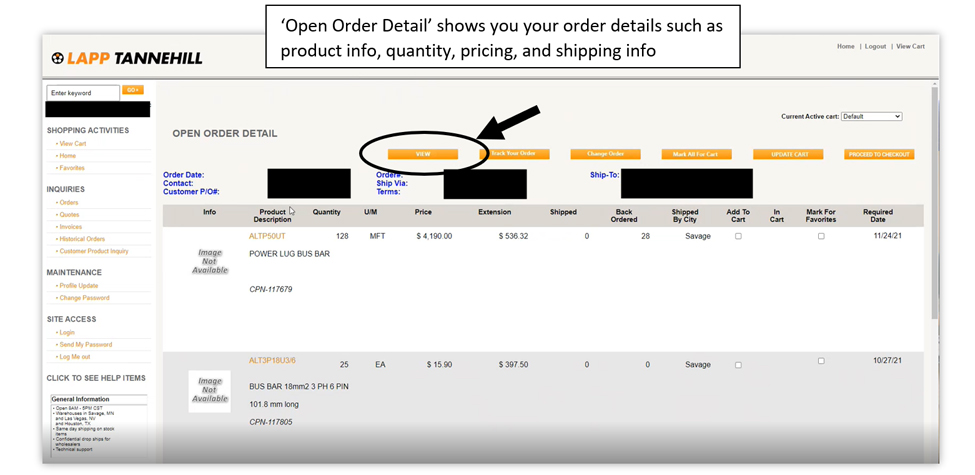
Screenshot shows a view of where to find your Order 'Acknowledgement'.
If you click on the orange ‘View’ button, the portal will show you pop-up window of the ‘Acknowledgement’ of the order where you can either print or email the document. An 'Acknowledgement' is a copy of your order.
Make Changes to Existing Orders
Do you need to go back to make a change on an order you've already placed? No need to worry - we've got you covered.
Simply log in and make your way to the left-hand side of the screen to 'Orders' under 'Inquiries'.
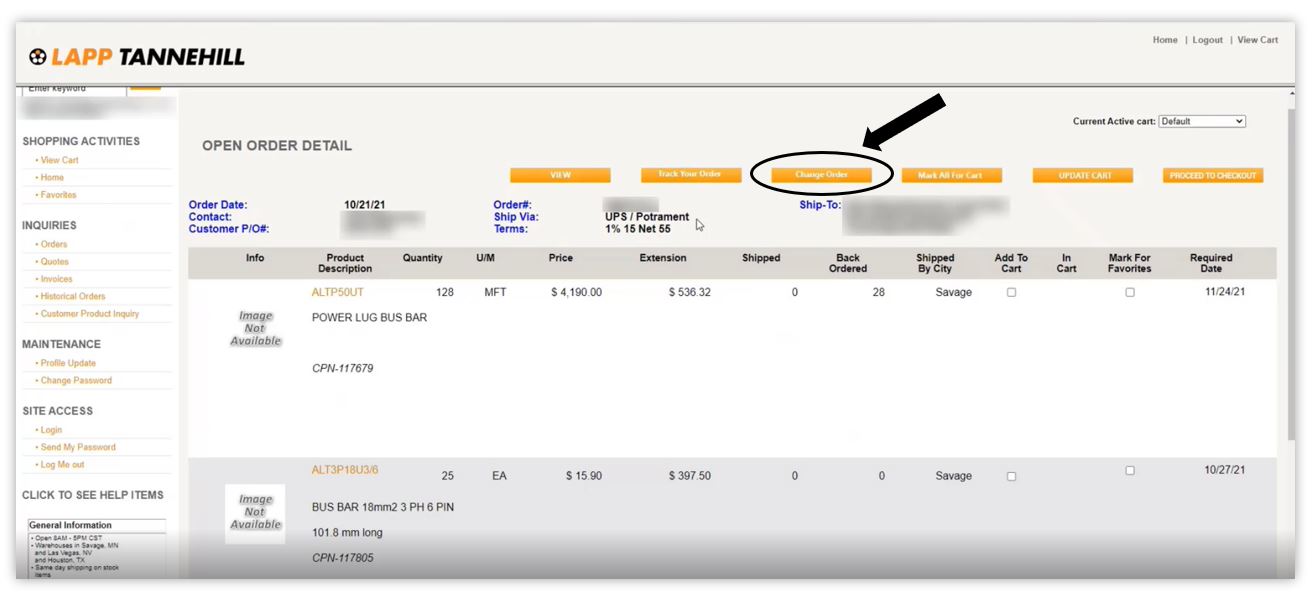 Screenshot shows a view of where to find the 'Change Order' button.
Click on any of your orders under the 'Order Number' column. From here, you'll be able to view a selection of orange button options near the top of the page.
The third orange button from the left labeled 'Change Order' will open up another window where you can directly email your sales rep assigned to your account.
In this email, include the details of your desired changes and your sales rep will update your order, communicate back via email or phone to confirm the changes, and update you on your new order status.
Add to Favorites
Do you anticipate ordering the same items from us over and over again? Luckily, we have a 'Favorites' section in your customer portal so you can save time and easily add these items back to your cart.
Once you're logged in, click on 'Favorites' under 'Shopping Activities' on the left-hand side of the screen.
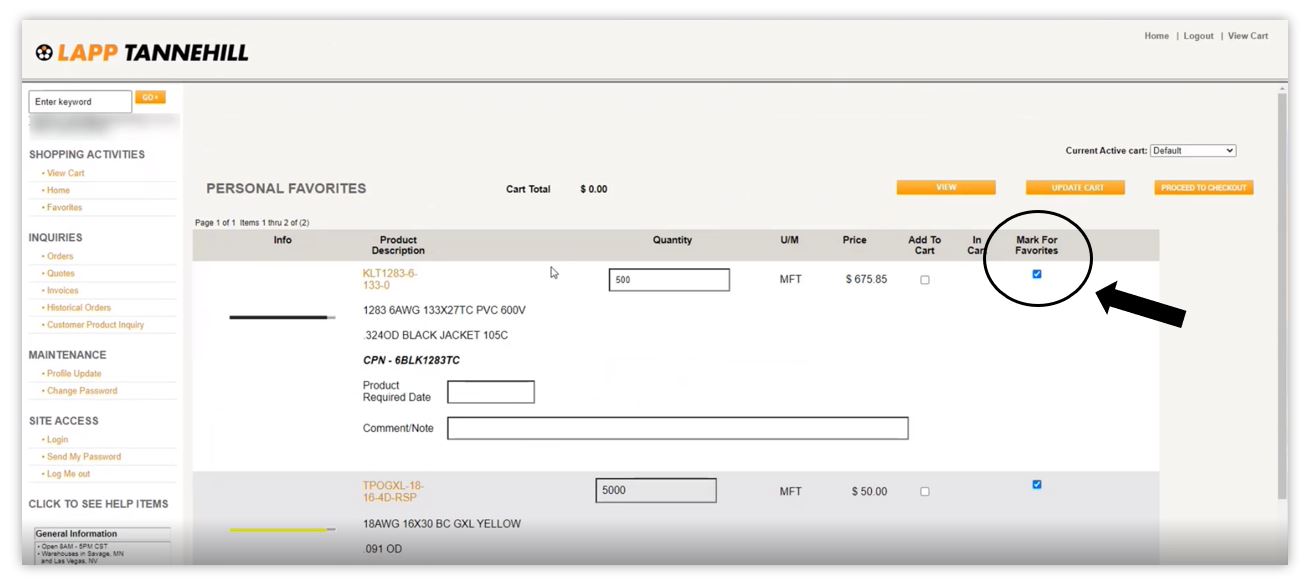
Screenshot shows a view of where to find the 'Mark for Favorites' checkbox.
This is where you'll find your favorited items. If you do not currently have any favorited items, then go to 'Orders' under 'Inquiries' on the left-hand side of your screen.
Once you're on the 'Open Order Summary' page, click on any of your orders under the 'Order Number' column.
Once you're viewing the 'Open Order Detail' page, you will see an checkbox labeled 'Mark for Favorites' next to each of the products listed.
Check the items you'd like to see in your 'Favorites' view. Once there are favorited items, then you'll be able to mark the checkbox 'Add to Cart' from your 'Favorites'.
Learn how to view historical orders, tracking info, and invoices.
If you cannot find what you're looking for, please reach out to us for more information via chat support on our website, fill out a form on our contact page and we'll get back to you, or call us directly at 800-633-6339.
Related Posts

Categories
Recent Posts



 RSS Feed